How to install the Wren plugin in ChatGPT
ChatGPT can now write in your Wren notebook
You're working through a problem in ChatGPT and you want the graph in your notes, not buried in a chat. That's what the official Wren plugin is for. Ask ChatGPT for a note, a graph or a flowchart, and it lands in your Wren notebook as real handwriting: pen strokes you can edit, not a pasted image. It syncs to your iPad, so it's there the next time you open Wren.
The plugin can start a new note, add a page to a note you already have, or keep going on a page Wren wrote. It never changes your own handwriting. Under the hood it uses MCP (Model Context Protocol), the open standard ChatGPT uses to talk to other apps, but you don't need to know anything about it to get set up.
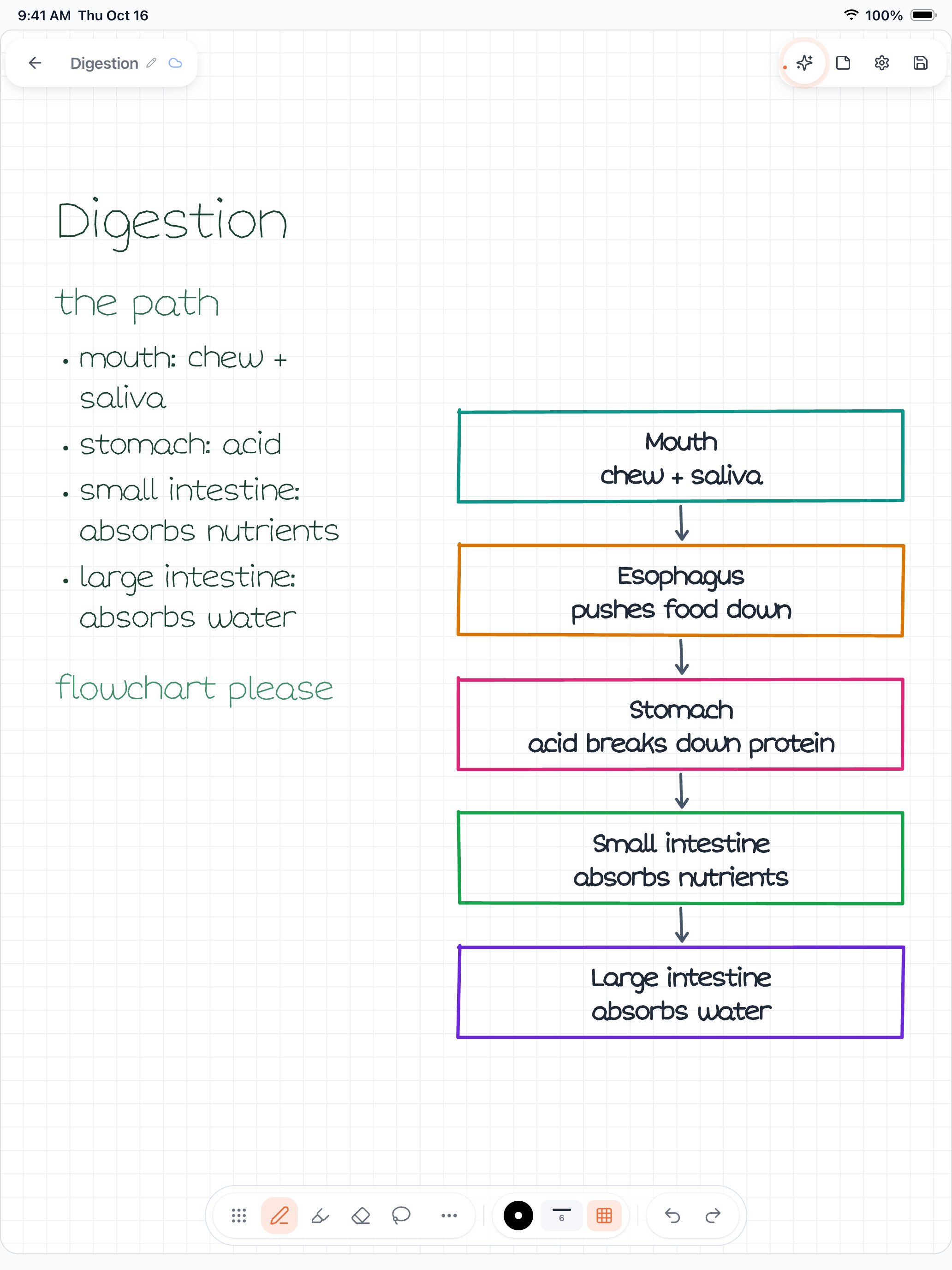
Figure 1. A Wren 1.5.4 page: handwritten digestion notes on the left, a flowchart in Wren's ink on the right. A flowchart is one of the things you can ask ChatGPT to write into your notebook through the plugin.
Before you start
- A Wren account. Use the one you already sign in with in the Wren app.
- A ChatGPT account. You'll add the plugin from inside ChatGPT.
- The US or Canada. That's where the Wren plugin is available.
Install the plugin in 5 steps
- Open the plugin directory. In ChatGPT, open Plugins to browse the plugin directory.
- Find Wren. Search for "Wren" and open its page.
- Install it. Select Install plugin (on some screens it's a plus button), then select Connect when ChatGPT asks you to.
- Sign in to Wren. A Wren page opens that says "Connect your Wren account." Sign in with the email and password you use in the app, or choose Continue with Google. Then select Allow.
- Try it. Start a new chat and ask for something in Wren. ChatGPT uses the plugin when your request fits, and you can type @Wren to pick it directly.
OpenAI moves ChatGPT's menus around from time to time. If a label looks different, open the plugin directory and search for Wren. OpenAI's own guide to plugins in ChatGPT has the current steps.
Using Developer mode instead
Some ChatGPT plans include Developer mode, a beta setting for adding an app by its URL. If you already use it, you can add Wren that way:
- Turn on Developer mode in ChatGPT's settings.
- Create a new app (ChatGPT may call it a custom MCP server) and paste this URL:
https://mcp.wrenapp.ai/mcp
- Choose OAuth for authentication, save it, and connect.
- Sign in on the Wren page and select Allow, the same as step 4 above.
The menu names for this change more often than the plugin directory does, so check OpenAI's Developer mode guide if something doesn't match.
Things to ask, and what happens
Here are six prompts to start with:
- "Handwrite study notes on photosynthesis in Wren." You get a new note with a handwritten page of study notes.
- "Graph y = x^2 - 4 in a new Wren note called Quadratics." Wren makes a note named Quadratics with the parabola drawn on it. ChatGPT shows a card that reads New note "Quadratics" · page 1 of 1.
- "Add a page to my Quadratics note with the quadratic formula." It finds the note by title and adds a page at the end with the formula written out.
- "On page 1 of Quadratics, also write: the vertex is at (0, -4)." The line goes below the graph on that same page. If there's no room left, Wren puts it on a new page and says so.
- "Make a flowchart of the scientific method in Wren." Boxes and arrows, written as a flowchart in a new note.
- "Find my Wren notes with chemistry in the title." A list of matching notes, most recently edited first, with the page count for each.
Graphs and flowcharts are just the start. You can also ask for formulas, tables, bar charts, timelines, mind maps, concept maps, checklists, labelled diagrams and step-by-step solutions. And if a note needs a better name, ask ChatGPT to rename it or change its subject.
What the plugin can see and change
When you select Allow, you give the plugin three permissions:
- Your profile: your Wren account ID, name and email address.
- Reading notes: your note titles, subjects and the list of pages in each note.
- Writing notes: creating notes, adding pages, writing on pages Wren wrote, and renaming notes.
A few limits are worth knowing. The plugin doesn't read the words you wrote by hand. It sees titles, subjects and pages, not what's on them. It never modifies your own handwriting, and once you change a Wren page on your iPad, that page is yours too. If you ask it to rewrite a page like that, ChatGPT will offer to add a new page instead.
For the details behind the sign-in, read Wren MCP authentication and permissions. Our privacy policy covers how your data is handled.
If something doesn't work
- Google sign-in doesn't finish. Allow pop-ups for the Wren sign-in page, or sign in with your email and password.
- You see "Guest accounts cannot be linked." The plugin needs a Wren account that signs in with Google or with email and password.
- You see "This email already has a Wren account with a different sign-in method." Sign in the way you did when you created your account.
- ChatGPT answers without using Wren. Say "in Wren" in your request, or type @Wren.
- Wren won't change a page. That page has your handwriting on it, so ask for a new page instead.
The Wren MCP troubleshooting guide covers more cases, like a prompt that finds the wrong note.
Get Wren for your notes
The plugin writes into your Wren notebook, so you'll want the app where those notes live. Download Wren on the App Store, sign in with the same account, and whatever you ask ChatGPT to write shows up next to your own handwritten notes.