Wren MCP authentication and permissions
Sign in once, grant exactly what you intend
A connection that can read and write your notes deserves a clear account of what it can do. This guide explains the Wren MCP sign-in and the permissions you grant, so you can connect with confidence.
If you have not connected yet, start with how to connect Wren to ChatGPT with MCP. This guide assumes you have reached the Wren sign-in step and want to understand it before you approve it.
How the sign-in works
The Wren MCP connection signs in with OAuth 2.1, using PKCE and the S256 challenge method. That is the modern, recommended way for a client to prove it started the sign-in it is completing, without a shared secret travelling through the browser.
In plain terms, the flow is:
- The chat client starts a sign-in and prepares a one-time proof (the PKCE challenge).
- Wren opens a sign-in page where you authenticate with your own account.
- When you approve, Wren returns a credential to the client, and the client uses its one-time proof to redeem it.
Two things matter for your confidence here:
- You sign in on a Wren page, not inside the chat client. Your Wren password never passes through the client.
- You connect as yourself. The connection acts on the same Wren account you signed in with, not a shared or separate one.
What you are granting: the three scopes
When you approve the connection, you grant a specific, named set of scopes. Wren's MCP connection uses three:
notes.read— the client can read your notes. This is what lets a chat have the same context you do, so it can work from a real page instead of a pasted snippet.notes.write— the client can add to and change your notes. This is what lets the chat place something useful on the page, such as a structured list, a formula, or a diagram.profile.read— the client can read basic profile information for your account, enough to know whose notes it is working with.
Those three scopes describe the whole surface. The connection does not ask for anything outside them, and each one maps to an action you can predict: read a note, write a note, or identify the account.
Figure 1. A verified PencilKit highlight fixture. Review on the page is how you stay in control of a change before you keep it.
Why notes.write is safe to grant
Write access can sound larger than it is. In practice, a write through Wren lands the same way any Wren addition does: as something on the page you can review.
That is the habit worth keeping. When a connected client adds a graph, a formula, or an explanation, treat it the way you treat any AI draft in Wren — read it on the page, check that it answers the question you actually had, and keep it only if it helps. A write is not a silent overwrite of your thinking; it is an addition you get to accept or discard.
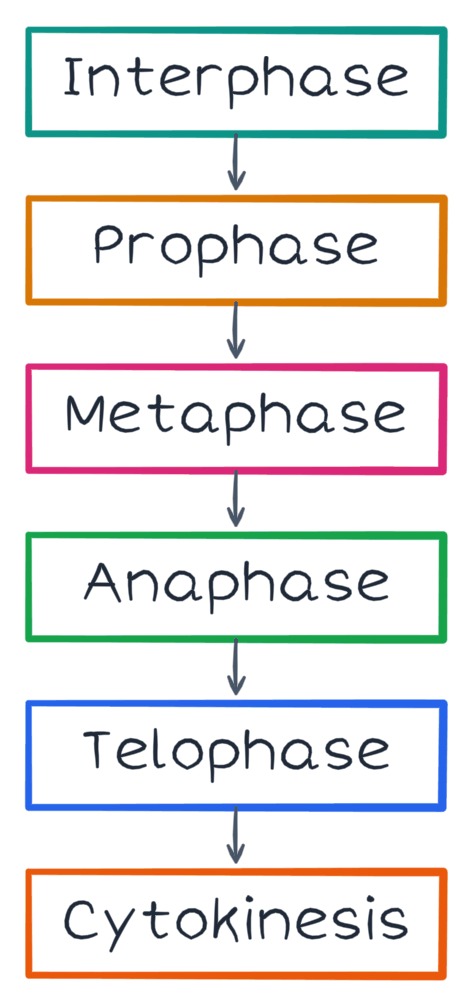
Figure 2. A verified PencilKit flowchart fixture. Under notes.read, a connected client can reference a structured note like this to build on what you already wrote.
Scope of the connection, in one view
- Who it acts as: you, through your own Wren account sign-in.
- What it can read: your notes (
notes.read) and basic profile data (profile.read). - What it can change: your notes (
notes.write), as reviewable additions on the page. - How you approve it: on Wren's own OAuth 2.1 sign-in page, with PKCE S256.
If any of those does not match what a client is asking for, stop and re-check the connection before approving.
A permissions checklist before you approve
- Confirm the sign-in page is Wren's own page, where you enter your account.
- Confirm you recognise the three scopes:
notes.read,notes.write,profile.read. - Approve the sign-in to complete the connection.
- After connecting, read one note to confirm
notes.readworks. - Add one small item and review it on the page to confirm
notes.writebehaves like any Wren draft.
Common questions
Does the connection use a password I type into ChatGPT?
No. You sign in on Wren's OAuth 2.1 page with your own account. The chat client never receives your Wren password; it receives a credential only after you approve the sign-in.
Can a connected client reach another person's notes?
No. You authenticate as yourself, and the scopes apply to your own account. The connection reads and writes your notes under notes.read and notes.write, and identifies the account under profile.read.
What should I do after I connect?
Return to the setup guide to confirm the connection with a real read and write. Then use the review-and-organization guide to turn what a connected client adds into something you can actually study from.