Wren MCP troubleshooting: when a prompt does not reach your notes
First, decide which kind of problem you have
Most trouble with the Wren MCP connector falls into one of four groups. Naming the group first saves you from changing settings that were never the problem.
- Authorization — the connector is not allowed to do what you asked.
- Reach — the prompt found the wrong note, or no note.
- Drawing — a drawing came back as the wrong kind or the wrong shape.
- Unwanted change — a write action happened that you did not mean to accept.
Work through them in that order. A read prompt that succeeds tells you the connection itself is alive, so start there before you touch anything.
Group 1: Authorization and OAuth scopes
The connector uses OAuth scopes, and read and write are authorized separately.
A common pattern: a read prompt such as "list my recent notes" works, but a write prompt such as "create a note" does nothing. That is the signature of a connection that holds read scopes but not write scopes.
What to check:
- Confirm you completed the connection flow and granted the scopes it asked for.
- If write actions (create note, add page) fail while read actions succeed, reconnect and make sure the write scopes are included.
- If every action fails, the connection itself may have expired. Reconnect from the start.
Do not assume a failed write is a bug in the note. First rule out that the connector was simply never allowed to write.
Group 2: The prompt reached the wrong note, or no note
If a tool call succeeds but describes the wrong page, the problem is usually the prompt, not the connector.
Run a read flow to see what the connector actually sees:
"Using Wren, list my recent notes and show me their titles."
Then name the note exactly:
"Get the note titled 'Acids and Bases', not the one called 'Acids'."
If a title is ambiguous, the read tools may land on a near match. Being specific in the prompt fixes most reach problems without changing any setting.
Group 3: The drawing came back wrong
Drawing produces AI ink in a named kind. If the result is not what you wanted, two things usually cause it.
The kind was not named. Ask for the exact kind. The drawing guide supports kinds such as graph_2d, formula, flowchart, worked_solution, checklist, and study_page. "Draw the mitosis stages" is vaguer than "draw a flowchart of the mitosis stages."
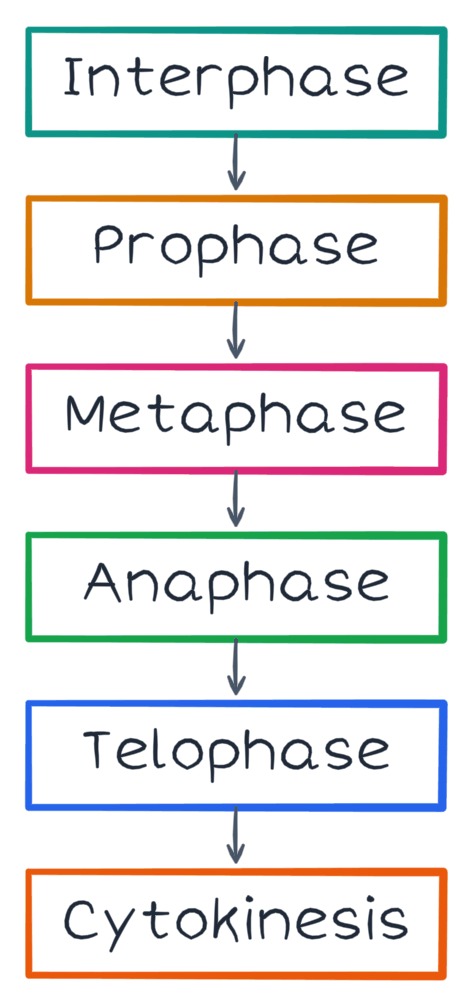
Figure 1. A verified PencilKit flowchart fixture. When a process prompt returns the wrong kind, name flowchart explicitly and ask again.
The draft was too large for the page. Ask for a smaller, more specific drawing. A checklist of three items reviews better than a drawing that tries to explain an entire unit.
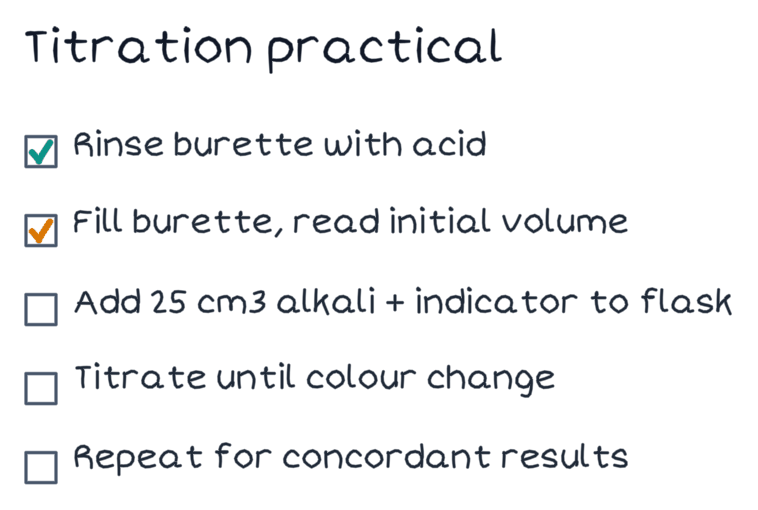
Figure 2. A verified PencilKit checklist fixture. A small, reviewable structure is easier to keep or discard than an overloaded one.
The fix for a wrong drawing is always the same: discard the draft, refine the prompt with the exact kind, and ask again. A drawing is a draft you review on the page, so a wrong one costs nothing to reject.
Group 4: A note changed when you did not mean it to
This is the group to take most seriously, and the one that is easiest to prevent.
Write actions — create note, add page, and the destructive changes edit_page and update_note — are meant to be reviewed before they are accepted. edit_page and update_note change content that already exists, so they deserve the most care. The connector does not act without your confirmation, which means an unwanted change almost always traces back to a prompt that bundled several actions and a confirmation that was given too quickly.
To prevent it:
- Ask for one write action at a time.
- Read exactly what the proposed action will change before you accept it: which note, which page, and the new content.
- For edit_page and update_note, confirm what is being replaced, not just what is being added.
- If you are unsure, run a read flow first to see the current state, then decide.
If a change did slip through, treat it like any other note edit: open the note, review the page, and correct it. Then slow the flow down so the next write action is reviewed before it lands.
A troubleshooting routine
- Run a read prompt. If it works, the connection is alive.
- If a write fails but reads work, check write OAuth scopes and reconnect.
- If the wrong note comes back, name the note exactly in the prompt.
- If a drawing is wrong, discard it and ask again with the exact kind.
- Keep write actions to one at a time, and review each before accepting.
Common questions
Is a failed write action always an error?
No. The most common cause is that write scopes were never granted, so read flows work while create note and add page do not. Check authorization before assuming the connector is broken.
Can MCP change my notes without asking?
No. Write actions, including the destructive edit_page and update_note, are reviewed before they are accepted. The connector does not run them silently. If a change surprised you, it means several actions were bundled and confirmed at once; slow the flow down and review one action at a time.
What should I try next?
For the full set of prompt workflows and what each tool does, read the practical MCP workflows guide. To keep the pages your write actions produce easy to return to, read how to review and organize notes with Wren.