How to use Wren with ChatGPT: practical MCP workflows
Start with what MCP actually gives ChatGPT
The Wren MCP connector hands ChatGPT a small, fixed set of tools for your notes. It is not a chat with your notebook and it is not a session that remembers a running conversation about your pages. It is ten tools that each do one specific thing.
Those tools fall into three groups:
- Read tools, which describe what is already in your notes: listing notes, getting a note, and reading a page.
- Write tools, which add something: creating a note and adding a page.
- Drawing, which produces AI ink for a page in a specific kind, such as graph_2d, formula, flowchart, worked_solution, checklist, or study_page.
The read tools are safe to run freely. The write and drawing tools change or add to your notes, so you review what they produce before it becomes part of a page.
Every example below is a prompt. It is something you type to ChatGPT. The prompt asks ChatGPT to call a Wren tool. It does not run anything by itself, and a write or drawing tool call is something you confirm, not something that happens silently.
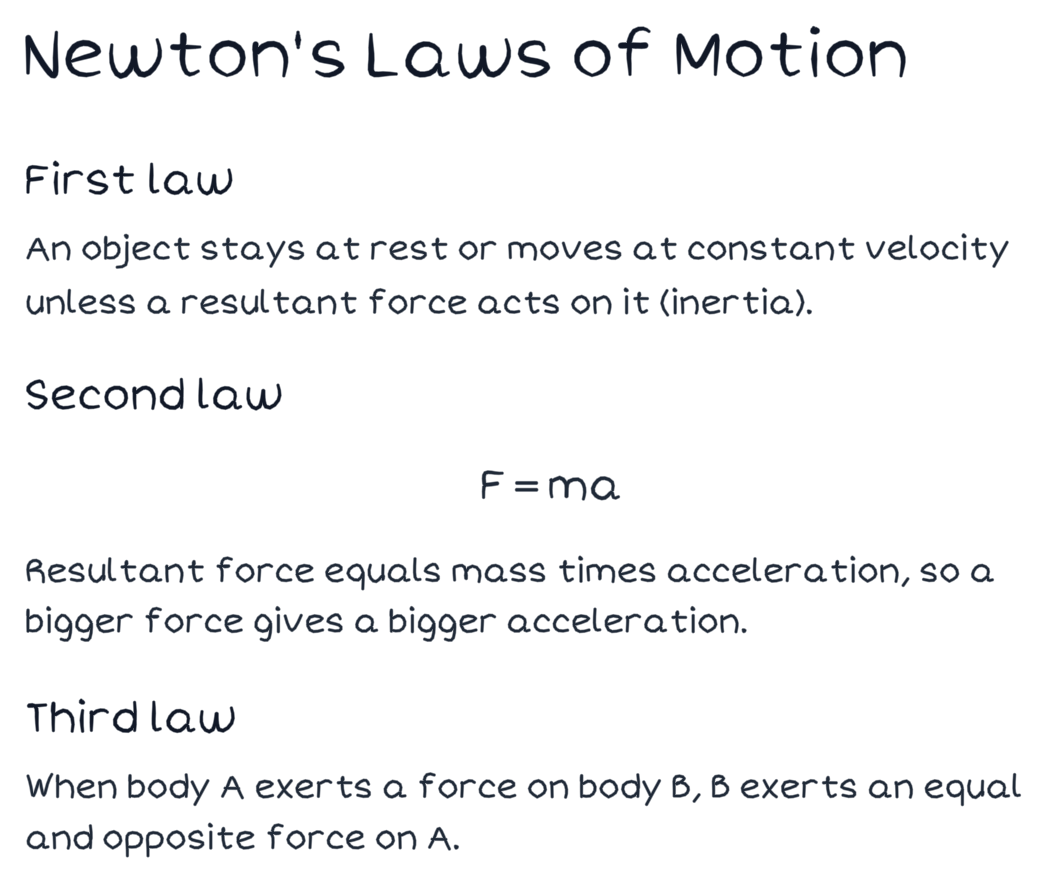
Figure 1. A verified PencilKit study-page fixture. A read flow describes a page like this back to you so you can decide what to do next.
Workflow 1: Read before you touch anything
The safest first workflow is to look, not change.
Prompt (example):
"Using Wren, list my recent notes and tell me which ones are about chemistry."
This asks ChatGPT to call the list-notes tool and summarize what it finds. Nothing is created or edited. You are using the read tools only.
Follow it with a get-note prompt once you know which note you want:
"Get the note titled 'Acids and Bases' and summarize the main sections for me."
Read flows are the right place to start because they let you confirm the connector is reaching the correct notes before you ask it to write anything.
Workflow 2: Create a new note from a prompt
When you want a fresh note, ask for it explicitly and then review it.
Prompt (example):
"Using Wren, create a new note called 'Exam 2 review' with a short outline of the three topics I need to practice."
This is a write action. ChatGPT proposes a create-note tool call. Before you accept it, read what it is about to create: the title, the content, and where it will live. A create action should never feel like a surprise. If the outline is wrong, change the prompt and ask again rather than keeping something you did not intend.
A good habit: ask for the note content in the chat first, read it, then ask Wren to create the note once you are happy with it.
Workflow 3: Add a page to an existing note
Adding a page is the second write action. It extends a note you already have.
Prompt (example):
"Using Wren, add a new page to my 'Cell Biology' note with a short checklist of the stages of mitosis."
Again, this proposes a write call. Review the target note and the page content before accepting. Adding a page is additive, but it still changes your note, so treat it with the same care as creating one.
If you are not sure which note the page should join, run a read flow first (Workflow 1) to confirm the title.
Workflow 4: Ask for a drawing, then review it on the page
Drawing is where Wren produces AI ink. You name the kind that fits the page.
Prompt (example):
"Using Wren, draw a flowchart of the mitosis stages as a page I can review."
The drawing guide supports kinds including graph_2d, formula, flowchart, worked_solution, checklist, and study_page. Match the kind to the work:
- graph_2d for a relationship that changes, such as a parabola beside equation work.
- formula for a rule you want written cleanly beside an example.
- flowchart for a sequence or decision.
- worked_solution for a step-by-step problem.
- checklist for a short set of things to verify.
- study_page for a combined page of notes and review structure.
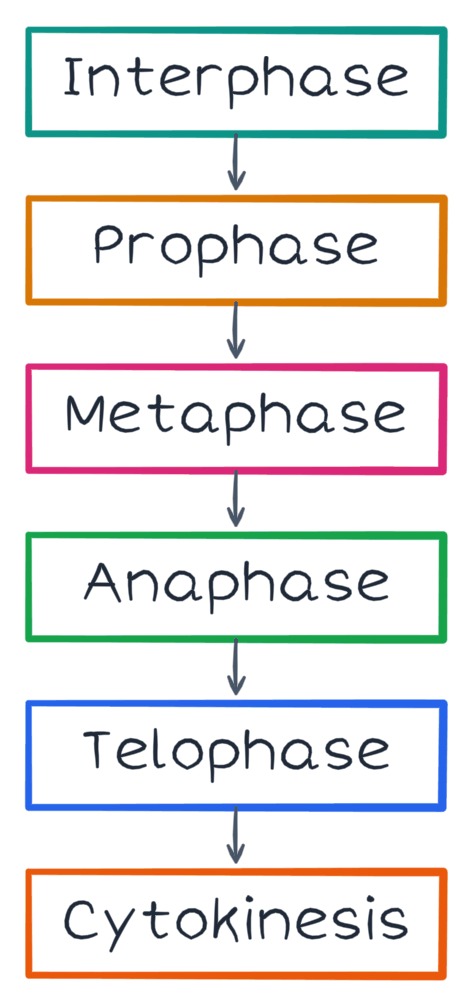
Figure 2. A verified PencilKit flowchart fixture. A drawing prompt for a process produces ink like this, which you review before keeping.
The result is a draft you look at on the page. You keep it or discard it. It does not become permanent on its own. If the flowchart has the wrong steps, discard it and refine the prompt. The review step is the whole point: it is how you stay in control of what lands on your page.
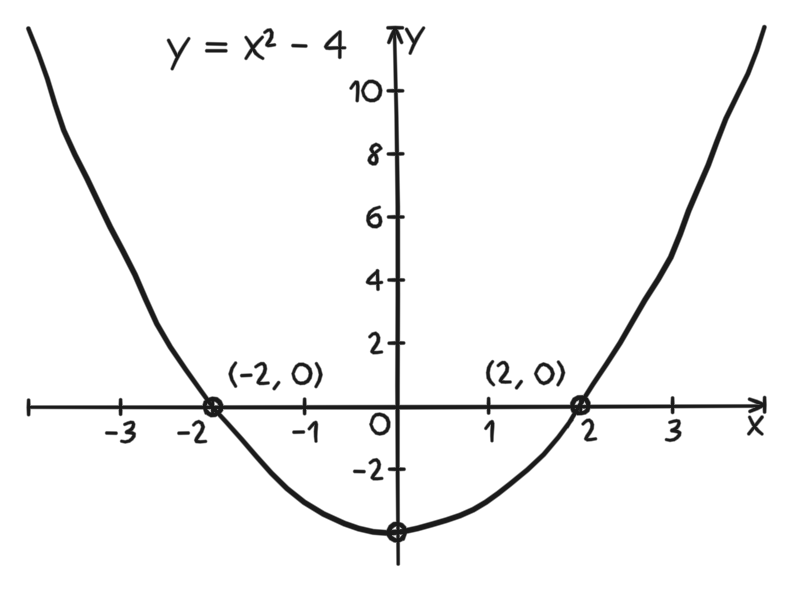
Figure 3. A verified PencilKit graph fixture. Ask for graph_2d when the page needs a relationship drawn beside the equation, then review it before it is part of the page.
Workflow 5: Chain read, draw, and review
The most useful flow combines the groups in order.
- Read the note so you know what is already there.
- Draw the one kind that answers the open question on the page.
- Review the draft and keep it only if it makes the page easier to study.
Prompt (example):
"Using Wren, get my 'Projectile Motion' note, then draw a graph_2d of height over time as a page I can review."
ChatGPT runs the read tool first, then proposes the drawing. You confirm the drawing before it is kept. The read step costs nothing; the drawing step is reviewed. This order keeps every change intentional.
A safe MCP routine
- Start with a read prompt to confirm the connector reaches the right notes.
- Ask for one write or drawing action at a time, phrased as an explicit prompt.
- Read what each write or drawing action proposes before you accept it.
- Keep a drawing only after you review it on the page.
- Refine the prompt instead of keeping output you did not intend.
Common questions
Are these examples commands that run automatically?
No. Each example is a prompt you send to ChatGPT. It asks ChatGPT to propose a Wren tool call. A write action such as create note or add page, and any drawing, is reviewed by you before it becomes part of a page. The connector does not act without your confirmation.
Can I keep a conversation going with my notes?
No. The connector is a fixed set of note tools, not a chat or a session with your notebook. Each tool call does one thing: read a note, list notes, get a page, create a note, add a page, or draw a specific kind.
What should I try next?
If a prompt does not reach your notes or a tool call does not behave as expected, read the Wren MCP troubleshooting guide. To understand what the AI ink looks like when it lands, read how Wren adds AI ink to handwritten notes.