Best Handwriting to Text Apps (2027): Free and Paid
A handwriting to text app does one of two jobs. Either it converts what you write with a pen inside the app, on an iPad, an Android tablet or a Windows 2-in-1, or it scans writing on paper from a photo. A few do both. This guide compares nine apps for those two jobs: what each converts, where it runs, whether it handles math, and what it costs.
Every fact about another app comes from its maker's own help pages, plan pages or store listing, checked on November 15, 2026; the sources are at the end. We did not run our own accuracy test, because results depend so much on your handwriting and your language. One disclosure: we make Wren, a note app for iPad and the web. Wren is not a handwriting to text app, and we say exactly what it does instead near the end.
The best handwriting to text apps at a glance
| App | Converts | Works on | Handwritten math | Price model |
|---|---|---|---|---|
| Apple Notes and Scribble | Writing in Notes (Copy as Text); Scribble in any text field | iPad (Scribble needs Apple Pencil) | Math Notes solves it | Free, built in |
| Goodnotes | Writing in the app | iPad, iPhone, Mac, Windows, Android, web | Math Assist | Free plan (3 files) converts; paid plans |
| Notability | Writing in the app | Recognition on iOS and Android | Converts to LaTeX | Plus and Pro plans |
| MyScript Notes | Writing, math and diagrams in the app | iPad, iPhone, Android, Apple silicon Mac; Windows as Nebo | Converts to LaTeX | 7-day trial, then a limited free version or upgrade |
| OneNote | Writing in the app (Ink to Text) | Windows only; not on iPad or the web | Math Assistant (Microsoft 365) | Free app |
| Samsung Notes | S Pen writing in the app | Galaxy devices with an S Pen | – | Free on Galaxy devices |
| Live Text | Text in photos and the camera view | iPhone, iPad (iPadOS 15.1 or later) | – | Free, built in |
| Google Lens | Text in photos and the camera view | Google app on Android and iPhone; Chrome | – | Free |
| Pen to Print | Scans, photos and PDFs | iPhone, Android, web, Windows, Mac | LaTeX export tool | 10 free pages, then paid plans |
From each maker's own pages, checked November 15, 2026. A dash means the maker's pages we checked don't describe converting handwritten math. Plans change, so follow the links before you pay.
How we picked
Two questions decide which app you need:
- Where is the writing? If you write with a stylus on a tablet, you want a note app that converts its own ink. If the writing is on paper, a whiteboard or a worksheet, you want an app that reads text in a photo.
- What do you need back? A sentence to paste into an email, a whole page as a Word file, or handwritten math as LaTeX for a lab report each point to a different app.
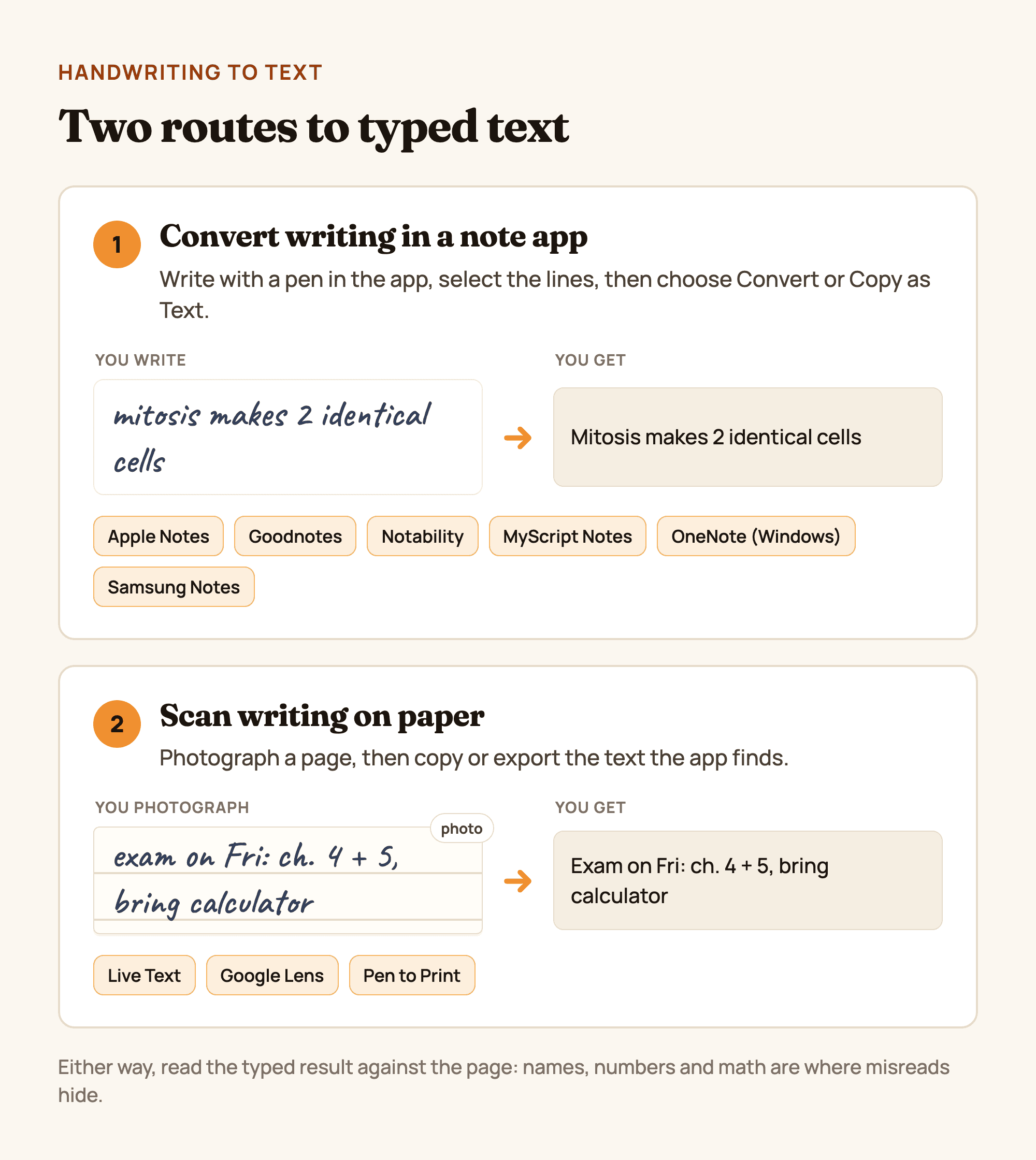
Figure 1. Two routes to typed text: convert writing inside a note app, or scan writing on paper, with the apps that do each. A diagram, not a product screenshot.
Best handwriting to text apps for pen and tablet
1. Apple Notes and Scribble: free, built into iPad
If you write on an iPad, start here. In Apple Notes you select handwriting with the Lasso tool or the same gestures you use for typed text, and you can "paste it as typed text in another note or app" (Apple). The Scribble tool in Notes goes further and transcribes your Apple Pencil writing to typed text as you write. Notes also searches handwritten text in supported languages.
Outside Notes, Scribble "automatically converts your handwriting into typed text" in any text field, from a search box to a message, and the conversion happens on your iPad (Apple).
- Works on: iPad. Scribble needs an Apple Pencil on a supported model, and both need your iPad language set to a supported language.
- Price model: free, built in.
- Step by step: how to convert handwriting to text on iPad.
2. Goodnotes: converts on every plan
Goodnotes is a full digital notebook, and converting handwriting to typed text is on every plan, including the free one. Circle the writing with the Lasso, tap it and choose Convert, then Text; you can correct a misread word before you convert (Goodnotes). Handwriting search and Math Assist are part of the app too.
- Works on: iPad, iPhone and Mac, plus Windows, Android and the web (pricing).
- Price model: free plan with up to 3 files, then paid plans.
3. Notability: handwriting and math, on paid plans
Notability converts handwriting to typed text with its lasso (Convert to Text), and converts handwritten equations too: choose Math and the result is backed by LaTeX you can edit (Notability help). Its plan comparison lists handwriting recognition and math-to-LaTeX conversion on iOS and Android only (compare plans).
- Works on: iPad, iPhone and Android for conversion; Notability also has Mac and web apps.
- Price model: conversion is on the paid Plus and Pro plans.
4. MyScript Notes: text, math and diagrams
MyScript Notes (formerly Nebo) is built around conversion. It converts handwriting to typed text in 66 languages, turns handwritten math into results you can copy as LaTeX, and turns hand-drawn diagrams into typed text and clean shapes. Notes export as Word, PDF and other formats (MyScript).
- Works on: iPad, iPhone and Android, plus Apple silicon Macs; on Windows the app keeps the Nebo name.
- Price model: a 7-day free trial with every feature, then a limited free version or an upgrade (FAQ).
5. OneNote: Ink to Text on Windows
On a Windows PC or 2-in-1, OneNote converts handwriting with Ink to Text: on the Draw tab, choose Lasso Select, drag over the writing, then choose Ink to Text. Microsoft notes the option "is not available in OneNote for Web" (Microsoft), and "OneNote for iPad does not currently support converting handwriting to text" (Microsoft).
- Works on: Windows for conversion. OneNote also runs on Mac, iPad, iPhone, Android and the web, without Ink to Text.
- Price model: free app; Math Assistant needs a Microsoft 365 subscription.
6. Samsung Notes: S Pen on Galaxy
On a Galaxy phone or tablet with an S Pen, Samsung Notes converts what you write: tap the Clean up handwriting icon, then the Convert to text icon, adjust the selection and tap Convert, or tap Copy to paste the text somewhere else (Samsung). If the result is wrong, you can change the recognition language from More options.
- Works on: Galaxy devices with an S Pen.
- Price model: free, preinstalled.
Best apps to scan handwriting to text from paper
7. Live Text: copy text from a photo on iPhone and iPad
Live Text copies text out of a photo or the camera view: open the photo, touch and hold a word, adjust the selection and tap Copy, or tap Select All (Apple). It is fast for a page of notes, a whiteboard or a handout. Apple's page describes text in photos in general, so test it on a page of your notes.
- Works on: iPhone XS or later with iOS 15 or later, and supported iPads with iPadOS 15.1 or later. Turn it on in Settings > General > Language & Region.
- Price model: free, built in.
8. Google Lens: copy handwriting to your phone or computer
Google Lens reads text through your camera, including handwriting, and lets you "copy text to your phone or computer" or translate it (Google). Sending text from your phone to a computer is handy when you are typing up notes on a laptop.
- Works on: the Google app on Android and iPhone, the camera on some Android phones, and Chrome on a computer.
- Price model: free.
9. Pen to Print: whole pages to Word or TXT
Pen to Print is made for handwritten documents. Upload a scan, an image or a PDF and get editable text back, as a TXT file or a formatted Word document, with extra tools for Excel, LaTeX and searchable PDFs (Pen to Print).
- Works on: iPhone and Android apps, the web, and a desktop app for Windows and Mac.
- Price model: 10 free pages, then paid plans.
What happened to Microsoft Lens?
Microsoft Lens (formerly Office Lens) used to be a common pick for scanning notes, but Microsoft retired it. It was removed from the App Store and Google Play on February 9, 2026, and scanning in the app stopped on March 9, 2026. Microsoft recommends the OneDrive app, "which includes a built-in scanning feature" (Microsoft). If an older list recommends Lens, use Live Text, Google Lens or Pen to Print instead.
Best handwriting to text app for iPad
On an iPad, try the free route first: Apple Notes and Scribble cover most students. If your notes already live in Goodnotes or Notability, convert them there. If converting is the whole point, including math and diagrams, look at MyScript Notes. Skip OneNote for this job on an iPad. Our guide to converting handwriting to text on iPad walks through each one, and the best apps for Apple Pencil covers the rest of your iPad setup. Still choosing the note app itself? Compare nine in the best note-taking app for iPad, then set it up with how to take notes on iPad.
Free handwriting to text apps
- Free and built in: Apple Notes, Scribble and Live Text on iPad; Samsung Notes on a Galaxy.
- Free apps: Google Lens, and OneNote for Ink to Text on Windows.
- Free tiers: Goodnotes converts on its free plan (up to 3 files), Pen to Print gives 10 free pages, and MyScript Notes keeps a limited free version after its trial.
How to get cleaner results
- Pick the right language. Every converter here reads in a recognition language; set it to the language you write in.
- For a scan, get a good photo. Lay the page flat, use even light and fill the frame with the writing.
- Convert a paragraph at a time. Short selections are easier to check.
- Proofread names, numbers and symbols. A converter can't know a name or a variable you made up.
Where Wren fits: it reads your handwriting, it doesn't convert it
Wren is a note app for iPad and the web, and it is not a handwriting to text app. Wren doesn't convert handwriting to typed text, and it doesn't scan paper notes into text. You can insert a photo into a Wren note, but it stays a photo.
What Wren does is different. On iPad, you write a problem or a question with Apple Pencil and pause. Wren's AI reads what you wrote and answers in ink on the same page: the next step of a solve, a graph, a labelled diagram, a formula or a short explanation. Each answer arrives as a draft you keep or discard, so the page stays yours. On the web, the same account and notes run in any current browser: type or sketch on a whiteboard page, pause, and the AI answers in ink there too (Wren AI whiteboard). Wren is free to start (pricing).
So if you need typed text, pick an app above. If you need help with what your notes say, that is the job Wren was built for. For note apps on every device, handwritten and typed, see the best note-taking apps of 2027.
Make it yours in Wren
Write one question from your notes in Wren on your iPad and pause, and see what the AI adds in ink. This is that moment, recorded on a real iPad:
PAUSE YOUR PEN
Write. Pause. Wren's AI answers on your page.
No chat window to copy from. Wren reads what is already on the page and adds the next part in ink, right where you are working.
- WriteOn iPad, write with Apple Pencil. On the web, type or sketch on a whiteboard page.
- PauseStop for a moment. Wren reads what is on the page.
- AI answers in inkWren's AI adds the graph, formula, diagram or next step on the same page, in ink you can edit.
Rather ask a question? On iPad, open Study Buddy: it reads the page and can add its answer in ink. On the web, Ask Wren answers questions about the open page.
Or watch Wren's AI write a study page in ink, then save it to your own notes and keep writing on it:
TRY IT ON A REAL PAGE
Watch Wren's AI write the page. Then make it yours.
Wren’s AI writes this page in real ink, stroke by stroke. Save it to your Wren notes and keep writing on it, on the web or on iPad.
Wren’s AI writes the page here.
Make it yours.
This is real ink, not a picture. Save it to your Wren notes and it becomes your page.
- Write your own notes next to it
- Erase or move any line, box or diagram
- Ask Wren's AI to explain or extend it
Free to start. One account for Wren on the web and on iPad. More pages to try
Rather start from a chat? With Wren connected to ChatGPT or Claude, paste this and the page lands in your notes:
ASK CHATGPT OR CLAUDE
Ask your AI. It writes in Wren.
Connect Wren to ChatGPT or Claude once. Then ask in the chat, and Wren writes the page into your notebook in ink, ready to edit on the web or on iPad.
Paste this into ChatGPT or Claude
Create a Wren note called Chemistry review with one page: a table of the first 10 elements and a labelled diagram of a carbon atom
- Connect WrenAdd the Wren plugin in ChatGPT, or add Wren as a custom connector in Claude. Sign in to Wren with your email or Google.
- Paste the promptYour AI finds the note by its title or subject, or starts a new one, and Wren writes the page.
- Keep writingOpen the note in Wren. The page is real ink: write next to it, erase or move any part.
Your AI sees note titles, subjects and page lists, not the writing on your pages. It adds pages and can redo pages Wren wrote; it never changes what you wrote. The ChatGPT plugin is available in the US and Canada.
Which handwriting to text app should you use?
- Use Apple Notes and Scribble if you write on an iPad and want free, built-in conversion.
- Use Goodnotes or Notability if your notes already live there.
- Use MyScript Notes if conversion is the main job, including math and diagrams.
- Use OneNote on a Windows PC, and Samsung Notes on a Galaxy with an S Pen.
- Use Live Text or Google Lens to copy text from a photo of paper notes, and Pen to Print to turn whole scanned pages into Word or TXT files.
- Use Wren when you want an answer to what you wrote, in ink on the page, rather than a typed copy of it.
Sources
Checked on November 15, 2026.
- Add drawings and handwriting in Notes on iPad and Enter text with Scribble on iPad, iPad User Guide (iPadOS 27)
- Copy and translate text from photos on your iPhone or iPad, Apple Support
- How to convert handwriting to text on iPad, Goodnotes blog, October 8, 2026, and Goodnotes pricing
- Handwriting and Math Conversion, Notability Support, and Notability plan comparison
- MyScript Notes and the MyScript Notes FAQ
- Take handwritten notes in OneNote and Handwrite, draw, and sketch in OneNote for iPad or iPhone, Microsoft Support
- Use Samsung Notes handwriting functions with your S Pen, Samsung Support
- Google Lens, Google
- Pen to Print
- Retirement of Microsoft Lens, Microsoft Support
Frequently asked questions
What is the best handwriting to text app?
It depends on where your writing is. On iPad, Apple Notes is free and built in, Goodnotes converts on every plan, Notability converts on Plus and Pro, and MyScript Notes also converts math and diagrams. On a Windows PC, OneNote has Ink to Text; on a Galaxy with an S Pen, Samsung Notes. For notes on paper, Live Text, Google Lens or Pen to Print.
Is there a free handwriting to text app?
Yes. Apple Notes, Scribble and Live Text are free and built into iPad, Google Lens is free, Samsung Notes is free on Galaxy devices and OneNote is a free app. Goodnotes converts handwriting on its free plan (up to 3 files). Pen to Print gives 10 free pages, and MyScript Notes keeps a limited free version after its trial.
What is the best app to scan handwriting to text?
For a quick copy from a photo, Live Text on iPhone and iPad or Google Lens on Android and iPhone; both are free. For whole documents you want as a Word file, a TXT file or a searchable PDF, Pen to Print takes scans, images and PDFs on iPhone, Android, the web and desktop.
Which iPad apps convert handwriting to text?
Apple Notes (select, then Copy as Text), Scribble in any text field, Goodnotes, Notability and MyScript Notes. OneNote for iPad does not, according to Microsoft. Our step-by-step guide covers how to convert handwriting to text on iPad in each of them.
Can a handwriting to text app convert math?
Some can. MyScript Notes and Notability convert handwritten math to LaTeX. Apple's Math Notes solves the math you write rather than converting it, and OneNote's Math Assistant works with handwritten equations with a Microsoft 365 subscription.
What happened to Microsoft Lens?
Microsoft retired it. Microsoft Lens was removed from the App Store and Google Play on February 9, 2026, and scanning in the app stopped on March 9, 2026. Microsoft recommends the OneDrive app, which has a built-in scanner.
Does Wren convert handwriting to text?
No. Wren doesn't turn handwriting into typed text, and it doesn't scan paper notes into text. On iPad, Wren's AI reads what you write to answer it in ink on the same page, such as the next step of a solve, a graph or a diagram. For typed text, use one of the apps in this guide.