How to Convert Handwriting to Text on iPad (4 Ways)
You can convert handwriting to text on an iPad without installing anything. Apple Notes copies what you wrote as typed text, and Scribble turns Apple Pencil writing into typed text in almost any text field. Goodnotes and Notability convert with their own lasso tools, and Live Text reads text out of a photo of a paper page. Comparing apps, including Android and Windows? See the best handwriting to text apps.
We wrote these steps from each maker's current help pages, checked on November 15, 2026, and Apple's iPad User Guide for iPadOS 27. Menu names move between versions, so if a label differs slightly on your iPad, look for the nearest match. One disclosure: we make Wren, a note app for iPad and the web. Wren doesn't convert handwriting to text; it gets one short section at the end for what it does instead.
Can you convert handwriting to text on iPad?
Yes, four ways. Pick the one that matches where your writing is:
| Way | Use it when | What you get | Cost |
|---|---|---|---|
| Apple Notes: Copy as Text | You already wrote notes in Apple Notes | Typed text to paste in any note or app | Free, built in |
| Scribble | You want to type with Apple Pencil in a text field | Typed text as you write | Free, built in |
| Goodnotes or Notability: Convert | Your notes live in Goodnotes or Notability | Typed text on the page or to copy | Goodnotes: every plan. Notability: Plus and Pro |
| Live Text | Your writing is on paper or in a photo | Copied text from the picture | Free, built in |
From Apple, Goodnotes, Notability and Microsoft help pages and plan pages, checked November 15, 2026.
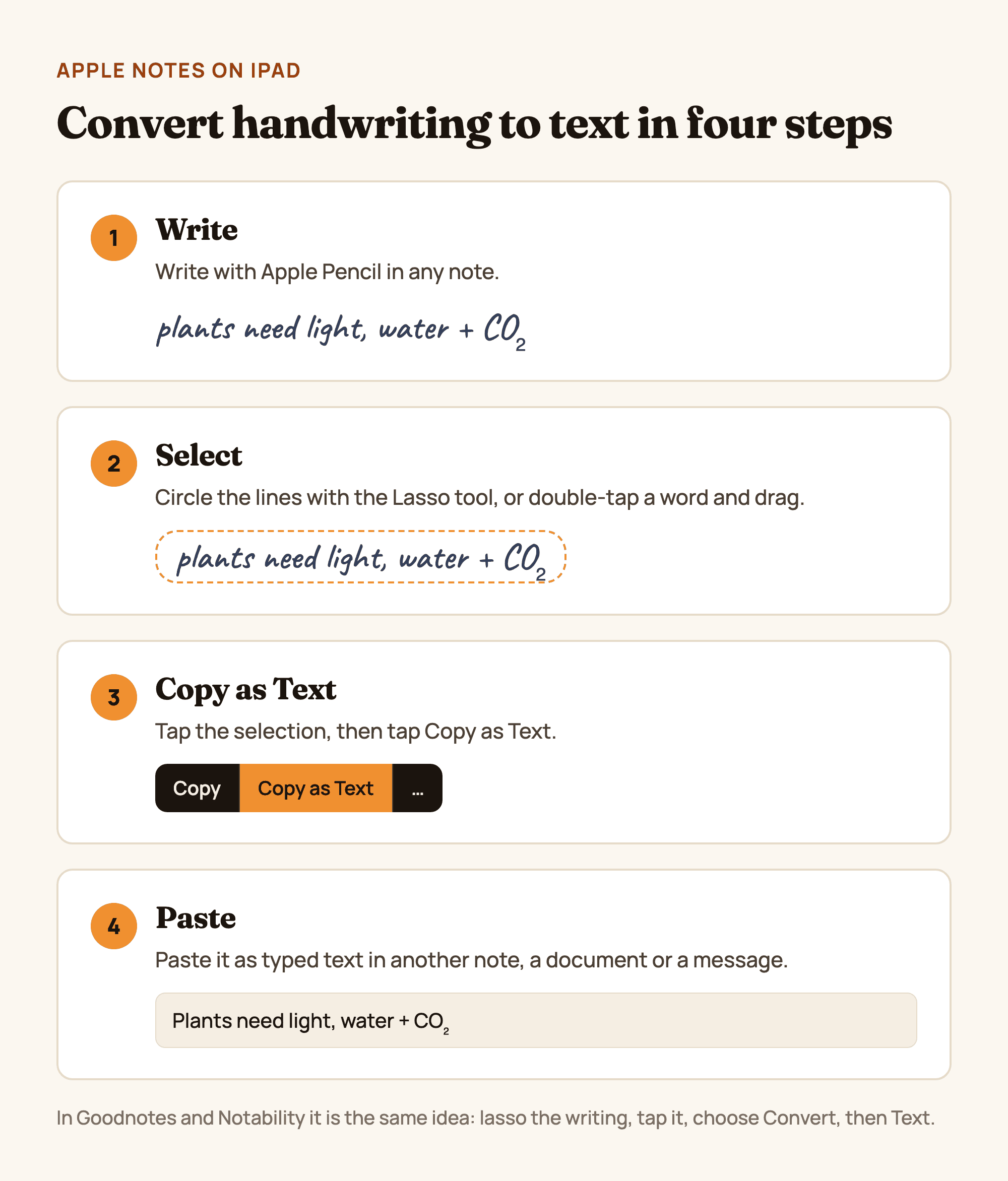
Figure 1. Converting handwriting to text in Apple Notes on iPad, in four steps: write, select, Copy as Text, paste. An illustration, not a product screenshot.
How to convert handwriting to text in Apple Notes
Copy handwriting as typed text
Apple calls this Smart Selection: you select handwriting with the same gestures you use for typed text, and you can "paste it as typed text in another note or app" (Apple).
- Open the note with your handwriting in the Notes app.
- Select the writing. Either tap the Markup button, tap the Lasso tool (between the eraser and Image Wand in the tool palette) and outline the lines with your finger, or use gestures: double-tap to select a word, triple-tap to select a sentence, or touch and hold, then drag.
- Drag the handles until the selection covers everything you want.
- Tap the selection, then choose Copy as Text.
- Paste it into another note, a document, an email or a message. It arrives as typed text you can edit.
Write straight into typed text with the Scribble tool
If you know you want typed text, skip the conversion. In a note, tap the Scribble tool, to the left of the pen in the tool palette (iPadOS 27 calls it the Handwriting tool), and write with Apple Pencil. Notes transcribes your writing to typed text as you go.
If Copy as Text doesn't appear
- Check the language. Smart Selection and handwriting transcription only work when your iPad language is a supported one: Settings > General > Language & Region > iPad Language.
- Select words, not a drawing. A sketch or a diagram has no text to copy. Select just the written lines.
- Select less. Try one paragraph at a time, then paste and repeat.
Apple Notes also searches handwritten text in supported languages, so you may not need to convert a note at all just to find something in it.
How to convert handwriting to text with Scribble
Scribble works in almost any text field on your iPad, from the Safari address bar to a message or a search box. It "converts your handwriting into typed text," and the conversion happens on your iPad (Apple).
- Go to Settings > Apple Pencil and turn on Scribble.
- Write with Apple Pencil in any text field. Your writing turns into typed text, even if it runs past the edges of the field.
- Edit with the pen:
- Delete a word: scratch it out.
- Insert text: touch and hold in the text, then write in the space that opens.
- Join or separate characters: draw a vertical line between them.
- Select text: circle it or underline it. Double-tap selects a word.
Scribble needs an Apple Pencil on a supported iPad, and it is available in several languages (Apple lists them on its Feature Availability page).
How to convert handwriting to text in Goodnotes
Goodnotes converts handwriting to typed text on every plan, including the free one (Goodnotes pricing).
- In a notebook, tap the Lasso tool in the toolbar.
- Draw a loop around the handwriting you want to convert.
- Tap inside the selection and choose Convert, then Text. In some versions the option sits in the ... menu as Convert > Text.
- Check the preview, fix any misread word, then tap Convert to replace the handwriting with typed text.
Steps from Goodnotes' help center and Goodnotes' own guide.
How to convert handwriting to text in Notability
Notability converts handwriting and handwritten math with its lasso. Converting handwriting to typed text is part of the paid Plus and Pro plans, and handwriting recognition runs on iOS and Android (plan comparison).
- Open a note and tap the lasso tool.
- Circle the handwriting you want to convert.
- Tap Convert to Text. Tap anywhere in the converted text to correct it.
- Tap Convert Selection to turn the handwriting into a text box with the typed text.
For an equation, choose Math instead. Turn on Math Conversion first in Notability's Handwriting & Drawing settings; the converted equation is backed by LaTeX you can edit (Notability help). Notability recognizes handwriting in your device language; you can change the handwriting language for a single note in Note Info.
Convert a photo of handwritten notes with Live Text
For notes on paper, a whiteboard photo or a worksheet, use Live Text (Apple):
- Turn on Live Text in Settings > General > Language & Region.
- Open the photo in Photos, or point the Camera at the page and tap the Live Text button.
- Touch and hold a word, then move the grab points to adjust the selection.
- Tap Copy, or tap Select All to take everything.
Live Text needs iPadOS 15.1 or later on a supported iPad. Apple's page talks about text in photos generally, so test it on your own writing: neat print reads far better than fast cursive.
What about OneNote on iPad?
OneNote for iPad can't convert ink to text. Microsoft's help page says "OneNote for iPad does not currently support converting handwriting to text" (Microsoft). On a Windows PC, OneNote's Draw tab has Ink to Text, which is "not available in OneNote for Web" (Microsoft). If your notes need to become text on an iPad, copy them from Apple Notes, Goodnotes or Notability instead, or see the best handwriting to text apps for the rest, including MyScript Notes.
Tips for a cleaner conversion
- Write on lines. A lined or grid page helps keep each line of writing level and separate from the next.
- Leave a clear gap between words. It gives the converter an obvious break between one word and the next.
- Convert a paragraph at a time. Short selections are easier to check than a full page.
- Proofread names, numbers and symbols. A converter can't know your teacher's name or a variable you made up, so check those by eye.
- Keep the handwriting too. Copy as Text leaves the original in your note, so you can always check the typed version against it.
Where Wren fits: it reads your writing, it doesn't convert it
Wren is a different tool for a different job. It doesn't convert handwriting to typed text, and there is no Convert button. On iPad, you write a problem or a question with Apple Pencil and pause; Wren's AI reads what you wrote and answers in ink on the same page, such as the next step of a solve, a graph, a labelled diagram or a formula. Each answer arrives as a draft you keep or discard.
On the web, Wren runs in any current browser with the same account and notes: type or sketch on a whiteboard page, pause, and the AI answers in ink there too (see the Wren AI whiteboard). Wren is free to start (pricing).
So if you need typed text to paste into an essay or an email, use Apple Notes, Goodnotes or Notability, above. If you need help with what you wrote, that is where Wren comes in.
Make it yours in Wren
Write one question from tonight's homework in Wren on your iPad, pause, and see what the AI adds in ink. This is that moment, recorded on a real iPad:
PAUSE YOUR PEN
Write. Pause. Wren's AI answers on your page.
No chat window to copy from. Wren reads what is already on the page and adds the next part in ink, right where you are working.
- WriteOn iPad, write with Apple Pencil. On the web, type or sketch on a whiteboard page.
- PauseStop for a moment. Wren reads what is on the page.
- AI answers in inkWren's AI adds the graph, formula, diagram or next step on the same page, in ink you can edit.
Rather ask a question? On iPad, open Study Buddy: it reads the page and can add its answer in ink. On the web, Ask Wren answers questions about the open page.
Rather start from a chat? With Wren connected to ChatGPT or Claude, paste this and the page lands in your notes:
ASK CHATGPT OR CLAUDE
Ask your AI. It writes in Wren.
Connect Wren to ChatGPT or Claude once. Then ask in the chat, and Wren writes the page into your notebook in ink, ready to edit on the web or on iPad.
Paste this into ChatGPT or Claude
Create a Wren note called Biology review with one page: a labelled diagram of a plant cell and a table of what each part does
- Connect WrenAdd the Wren plugin in ChatGPT, or add Wren as a custom connector in Claude. Sign in to Wren with your email or Google.
- Paste the promptYour AI finds the note by its title or subject, or starts a new one, and Wren writes the page.
- Keep writingOpen the note in Wren. The page is real ink: write next to it, erase or move any part.
Your AI sees note titles, subjects and page lists, not the writing on your pages. It adds pages and can redo pages Wren wrote; it never changes what you wrote. The ChatGPT plugin is available in the US and Canada.
For more on setting up an iPad for class, read how to take notes on iPad, or pick your apps with the best apps for Apple Pencil. Choosing a note app first? Start with the best note-taking app for iPad, or the best note-taking apps of 2027 across every device.
Sources
Checked on November 15, 2026.
- Add drawings and handwriting in Notes on iPad, iPad User Guide (iPadOS 27)
- Enter text with Scribble on iPad, iPad User Guide (iPadOS 27)
- Copy and translate text from photos on your iPhone or iPad, Apple Support
- Convert handwriting to text, Goodnotes Support, and How to convert handwriting to text on iPad, Goodnotes blog, October 8, 2026
- Goodnotes pricing and Notability plan comparison
- Handwriting and Math Conversion, Notability Support
- Handwrite, draw, and sketch in OneNote for iPad or iPhone and Take handwritten notes in OneNote, Microsoft Support
Frequently asked questions
How do I convert handwriting to text on iPad?
In Apple Notes, select the handwriting with the Lasso tool or by double-tapping a word, tap the selection, choose Copy as Text, then paste it as typed text in another note or app. In Goodnotes or Notability, circle the writing with the lasso, tap it and choose Convert, then Text. To type with Apple Pencil in any text field, use Scribble.
Can Apple Notes convert handwriting to text?
Yes. Apple's iPad guide says you can select handwriting with Smart Selection and paste it as typed text in another note or app, and the Scribble tool in Notes transcribes Apple Pencil writing to typed text as you write. Both need your iPad language set to a supported language.
How do I turn on Scribble on iPad?
Go to Settings > Apple Pencil and turn on Scribble. Then write with Apple Pencil in any text field, such as a search box or a message, and Scribble converts it into typed text. Scribble needs an Apple Pencil on a supported iPad.
Why don't I see Copy as Text in Apple Notes?
Check that your iPad language is one Apple supports for handwriting (Settings > General > Language & Region > iPad Language), and that you selected written words rather than a drawing. If the option still doesn't appear, select fewer lines and try again.
Can OneNote convert handwriting to text on iPad?
Not as of November 2026. Microsoft's help page says OneNote for iPad does not currently support converting handwriting to text. OneNote for Windows has Ink to Text; it is not available in OneNote for the web.
Can I convert a photo of handwritten notes to text on iPad?
Live Text can copy text out of a photo: open it in Photos, touch and hold a word, adjust the grab points and tap Copy, or tap Select All. It needs iPadOS 15.1 or later on a supported iPad and Live Text turned on in Settings > General > Language & Region. Check the result, since messy handwriting is harder to read than print.
Does Wren convert handwriting to text?
No. Wren doesn't turn handwriting into typed text. On iPad, Wren's AI reads what you write to answer it in ink on the same page, such as the next step of a solve, a graph or a diagram. For typed text you can paste elsewhere, use Apple Notes, Goodnotes or Notability.