Math Notes on iPad: How to Use It, and Its Limits
Math Notes is the math feature Apple built into the iPad. Write an expression with Apple Pencil, add an equal sign, and the answer appears next to it. In Apple's words, you can "type or write out mathematical expressions and see them instantly solved in their own handwriting" (Apple Newsroom). It arrived with iPadOS 18 and it is free.
We wrote this guide from Apple's current iPad User Guide (iPadOS 27), checked on November 15, 2026: what Math Notes does, how to use it, how to fix its errors and where it stops. One disclosure: we make Wren, an AI note app for iPad and the web. Wren gets its own section near the end, for the jobs Math Notes doesn't do.
What Math Notes does on iPad
According to Apple's guide, Math Notes can:
- Solve expressions you type or write, as soon as you add an equal sign. Horizontal expressions follow the standard order of operations; a vertical stack of numbers is added (or subtracted, if you write a minus sign) when you draw a line under it.
- Use variables. Write
x = 5, then usexin later expressions and equations. - Graph equations in two dimensions (two variables) or three dimensions (three variables), with several equations on one graph.
- Convert units and currency inside an expression, even mixed systems such as 42 meters + 143 feet.
- Update live. Change a value, or slide it with the scrubber (with Apple Pencil, hover over the number), and every result and graph that uses it updates.
Math Notes lives in two places: the Calculator app, which has a Math Notes mode, and the Notes app, where you can do the same math inside any note.
How to use Math Notes on iPad
Open Math Notes
- Open the Calculator app on your iPad.
- Tap the Change Mode button, then tap Math Notes.
- Open a previous Math Note, or tap the New Note button to start one.
Already writing in the Notes app? You don't need Calculator: open any note and write math there.
Solve an expression
- Type it: type an expression, then an equal sign.
- Write it: tap the Handwriting button, write the expression horizontally with Apple Pencil, then write an equal sign.
- Add a column: write a stack of numbers and draw a horizontal line under it.
Tap the equal sign to see what Math Notes read in your writing. That is the quickest way to catch a 7 it read as a 1.
Use variables
Write a letter or word, an equal sign and a value: a = 3. After that, use the variable in any expression or equation below it. Math Notes reads from the top left to the bottom right, so a variable has to be declared before you use it.
Graph an equation
In the Calculator's Math Notes, write an equation with exactly two undefined variables, one on each side of the equal sign, then tap Insert Graph (Apple: graphs in Math Notes). In the Notes app, write it with y on the left, such as y = 5x + 3, and tap Insert Graph (Apple: math in Notes).
Once a graph is on the page:
- Pinch to zoom and swipe with two fingers to pan.
- Touch and hold the line, then move along it to read each point's x and y values.
- Write another equation and tap Add to Existing Graph to compare two functions.
- For 3D, write an equation with
zon the left andxandyon the right, such asz = (y³ + x³)/2, and tap Insert 3D Graph.
Choose how answers appear
In a Math Note, tap the More button, then Math Results:
- Insert Results: answers appear automatically.
- Suggest Results: a Solve button appears, and the answer only shows when you tap it. Good for homework you want to try first.
- Off: no answers at all.
Calculator's Math Notes use a dark background by default; the same More menu has Use Light Background.
Math Notes in Calculator vs the Notes app
| Calculator (Math Notes mode) | Notes app | |
|---|---|---|
| Where you write | Dedicated Math Notes | Inside any note, next to your other notes |
| Solve with an equal sign | Yes | Yes |
| Variables | Yes | Yes |
| Graphs | 2D and 3D | 2D graphs of an equation with y on the left |
| Where the notes are saved | Also listed in the Math Notes folder in Notes | In your note |
If the math belongs to a class, the Notes app keeps it next to the rest of your lecture notes. Calculator is quicker for one-off sums and conversions.
How to fix Math Notes errors
Apple explains the two dotted lines in How to handle errors in Math Notes:
- Red dotted line: unrecognized math or an unsolvable expression, such as a syntax error or division by zero. Tap it to see the details, then fix the expression.
- Blue dotted line: an ambiguous character. Math Notes used its best guess; tap the line and pick the character you meant.
Most errors come from handwriting that reads two ways (1 and 7, x and ×, z and 2). Writing a little larger and leaving space between terms helps.
Where Math Notes stops
Math Notes is very good at what it is built for. These limits come from Apple's own guides:
- It gives answers, not the working. Apple describes Math Notes inserting the result, or a Solve button that inserts the answer. Its guides don't describe writing out the steps between the problem and the answer. If your teacher grades the method, you still have to write the method.
- Variables have rules. Declare a variable before you use it, use only Latin-alphabet names, and don't use variables in vertical (stacked) math. An expression with an undeclared variable produces an error.
- Graphs read every equation as y = f(x). A 2D graph needs exactly two undefined variables, and the one on the left goes on the y-axis.
- Written math uses Western Arabic numerals. Apple says the Notes app reads math written with Western Arabic numerals and common symbols; typed math also supports Arabic (Eastern and Western) and Devanagari numerals.
- It is part of Apple's apps. Math Notes is in the Calculator and Notes apps on iPad and iPhone, so it isn't the tool for the part of your week spent on a Windows laptop or a Chromebook.
Where Wren is different: the steps, the graph and the diagram, in ink
Wren is a note app built around one moment: you write or sketch a problem, pause, and AI answers in ink on the same page.
- Step-by-step solves. Write
solve x² − 5x + 6 = 0and pause. Wren's AI writes the worked solution underneath, step by step, with a check at the end. - Graphs from plain words. Write what you want, like "graph y = sin x from 0 to 360°", and the AI draws the axes, the curve and the key points.
- Diagrams, tables and formulas. A unit-circle table, a force diagram, a mind map of a chapter, or the formula you half remember.
- You decide what stays. Every answer arrives as a draft. Keep it, or discard it and the page is exactly as you left it. AI can make mistakes, so check the steps the way you would check a classmate's.
- Ask about the page. Stuck on one line? Ask Study Buddy on iPad, or Ask Wren on the web, about the page you have open.
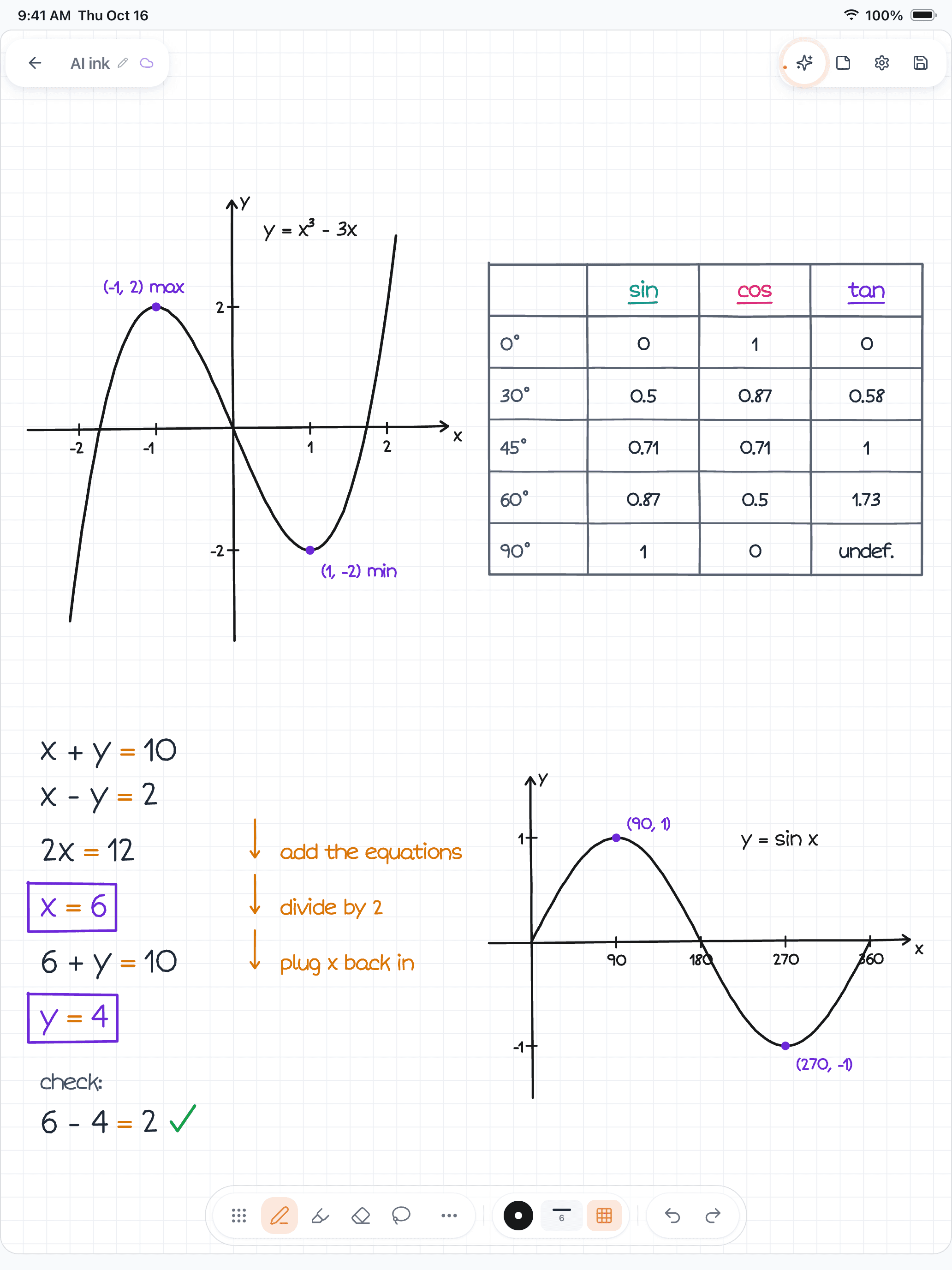
Figure 1. A Wren 1.5.4 page on iPad with four pieces of AI ink: a graph of y = x³ − 3x with its turning points, a sin, cos and tan table, a system of equations solved step by step with a check line, and a graph of y = sin x.
Where Wren runs:
- iPad and iPhone. Write with Apple Pencil on iPad. In the iPad app, the AI ink can follow a style based on a sample of your handwriting, so the answer reads like part of your notes.
- Any browser. Open web.wrenapp.ai on a Windows laptop, a Chromebook or a Mac, type or sketch on a whiteboard page with a mouse, touchscreen or stylus, and pause. On the web the AI ink isn't drawn in your handwriting style. It is the same account and the same notes as the iPad app. More on that in Wren on Windows and Chromebook, or see the Wren AI whiteboard.
Math Notes or Wren: which one when?
| If you want to… | Use | Why |
|---|---|---|
| Check an answer quickly | Math Notes | Free and built in; the answer appears after the equal sign. |
| Convert units in a physics or chemistry problem | Math Notes | Units and currency convert inside the expression. |
| See how a graph changes as you change a value | Math Notes | Slide a value with the scrubber and the graph updates. |
| See the steps of a solve | Wren | Pause and AI writes the worked steps in ink, with a check. |
| Get a graph, diagram or table from a plain-words request | Wren | Write what you want; AI draws it on your page. |
| Do math notes on a Windows laptop or Chromebook | Wren | The Wren web app runs in any current browser. |
Plenty of students use both: Math Notes for a quick check, Wren when they want the working on the page. For a method to organize the page itself, read how to take math notes. For your other classes, how to take notes on iPad covers the setup, and note-taking methods compared shows which layout suits each subject. Choosing a full note app? Read the best note-taking app for iPad, or see how Wren compares with Apple Notes overall in Wren vs Apple Notes.
Physics or chemistry homework rather than pure math? The physics problem solver and chemistry problem solver pages show the same write, pause and check flow on forces, circuits, stoichiometry and balancing equations.
Make it yours in Wren
Write one problem from tonight's homework in Wren, on your iPad or in your browser, and pause. AI writes the steps or the graph in ink; keep what helps. This is that moment, recorded on a real iPad:
PAUSE YOUR PEN
Write. Pause. Wren's AI answers on your page.
No chat window to copy from. Wren reads what is already on the page and adds the next part in ink, right where you are working.
- WriteOn iPad, write with Apple Pencil. On the web, type or sketch on a whiteboard page.
- PauseStop for a moment. Wren reads what is on the page.
- AI answers in inkWren's AI adds the graph, formula, diagram or next step on the same page, in ink you can edit.
Rather ask a question? On iPad, open Study Buddy: it reads the page and can add its answer in ink. On the web, Ask Wren answers questions about the open page.
Or watch a worked example write itself in ink, the solve and the graph, then save it to your notes and keep writing on it:
TRY IT ON A REAL PAGE
Watch Wren's AI write the page. Then make it yours.
Wren’s AI writes this page in real ink, stroke by stroke. Save it to your Wren notes and keep writing on it, on the web or on iPad.
Wren’s AI writes the page here.
Make it yours.
This is real ink, not a picture. Save it to your Wren notes and it becomes your page.
- Write your own notes next to it
- Erase or move any line, box or diagram
- Ask Wren's AI to explain or extend it
Free to start. One account for Wren on the web and on iPad. More pages to try
Rather start from a chat? With Wren connected to ChatGPT or Claude, paste this and the page lands in your notes:
ASK CHATGPT OR CLAUDE
Ask your AI. It writes in Wren.
Connect Wren to ChatGPT or Claude once. Then ask in the chat, and Wren writes the page into your notebook in ink, ready to edit on the web or on iPad.
Paste this into ChatGPT or Claude
Add a worked-example page on solving quadratics, with a graph, to my Algebra note in Wren.
- Connect WrenAdd the Wren plugin in ChatGPT, or add Wren as a custom connector in Claude. Sign in to Wren with your email or Google.
- Paste the promptYour AI finds the note by its title or subject, or starts a new one, and Wren writes the page.
- Keep writingOpen the note in Wren. The page is real ink: write next to it, erase or move any part.
Your AI sees note titles, subjects and page lists, not the writing on your pages. It adds pages and can redo pages Wren wrote; it never changes what you wrote. The ChatGPT plugin is available in the US and Canada.
Sources
Checked on November 15, 2026.
- iPadOS 18 introduces powerful intelligence features and apps for Apple Pencil, Apple Newsroom, June 10, 2024
- Solve math with Math Notes in Calculator on iPad, iPad User Guide (iPadOS 27)
- Work with graphs in Math Notes in Calculator on iPad, iPad User Guide (iPadOS 27)
- Enter formulas and equations in Notes on iPad, iPad User Guide (iPadOS 27)
- How to handle errors in Math Notes, Apple Support (published May 14, 2026)
Frequently asked questions
How do I use Math Notes on iPad?
Open the Calculator app, tap the Change Mode button, then tap Math Notes. Type an expression, or tap the Handwriting button and write it with Apple Pencil, then add an equal sign and the result appears. You can also do math in any note in the Notes app.
Can Math Notes graph equations?
Yes. Write an equation with two variables, such as y = 5x + 3, and tap Insert Graph. Equations with z on the left and x and y on the right graph in three dimensions. You can add more equations to the same graph, pinch to zoom and touch the line to read coordinates.
Does Math Notes show the steps?
Apple's guides describe Math Notes inserting the result of an expression, or a Solve button that inserts the answer, plus graphs. They don't describe writing out the working. If you want the steps on the page, Wren's AI writes a step-by-step solve in ink after you pause, and you keep or discard it.
What do the red and blue dotted lines in Math Notes mean?
A red dotted line means Math Notes found unrecognized math or an unsolvable expression, such as a syntax error or division by zero. A blue dotted line means a character was ambiguous; tap it and choose what you meant.
Can I turn off answers in Math Notes?
Yes. In a Math Note, tap the More button, tap Math Results and choose Insert Results, Suggest Results (a Solve button appears and you tap it for the answer) or Off. Suggest Results is handy when you want to try a problem first.
Is there Math Notes for Windows or Chromebook?
Math Notes is part of Apple's Calculator and Notes apps on iPad and iPhone. On a Windows laptop or Chromebook you can open the Wren web app in any current browser, type or sketch a problem on a whiteboard page, pause, and Wren's AI answers in ink.